

Extended ISPyB (EXI)
- Logging in to EXI
- Creating a contact at the user's institution
- Create a shipment
- Create new samples and provide a sample list
- Send the shipment to DESY
- Arrange the return of dewar(s)
EXI can also be used in creating a shipment to and from P11. Creating a shipment in EXI with a complete list of Unipucks and samples can also be synched to MXCuBE and connection sample information and associated data.
Logging in to EXI
Users with a scheduled beamtime at P11 can log in to EXI at any time so create a shipment.
- Log in with your DOOR account credentials.
- Select the proposal you want to work with (Fig. 1). Make sure you work with the proposal with scheduled beamtime. Sample information entered under the wrong proposal cannot be accessed during the experiment.
- If your proposal is not listed
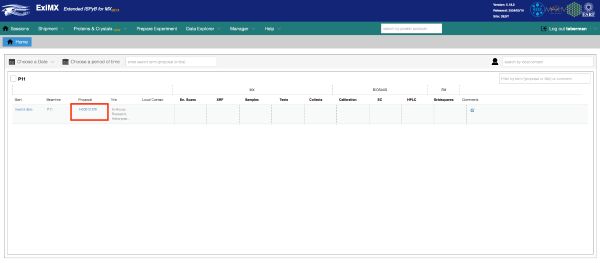
Figure 1.
Creating a contact at the user's institution
The first step to set up the shipment is to assign a contact from your home laboratory. This is the person whose name will appear in the shipping labels and who will receive notifications about the dewar.
- On the top menu bar, select Manage shipping address from the Shipment drop down menu. Select List to show the existing contact address card list – it will open to the left of the window.
- Look for your name in the list (the information is taken automatically from DOOR) and click anywhere on the card to verify that all the information is up to date and complete. If this is not the case, click on the Edit button, enter the correct information and Save.
Create a shipment
The next steps are to generate the ID and shipping labels for your dewars, list the containers and samples in the dewars and send a notification to DESY P11 staff. Even if you plan to transport the dewars to DESY yourself, creating the shipment is useful to provide the required sample information to be used in synching to MXCuBE.
- From the Shipment drop down menu, select Shipments and Add new.
- Fill in the shipment form. This information will be shown in the two ID labels generated by EXI to easily identify your dewar when it arrives and departs DESY and while it is present at the beamline. Note: Even if you are using your own shipping labels, or bringing the dewar to DESY yourself, it is important to attach the ID label to the dewar to avoid misidentification.
- The name field entry will appear in the shipment list and the ID labels and it must be unique for the proposal. We recommend a name containing the date of the experiment.
- The session menu allows selection between the beamtimes created in DOOR. This field is for information only and not used by the software at MAX IV ?.
- Select your name (that is the default if you use “my_card_name”) or other contact person in your home lab responsible for the shipment. Usually the Return address will be the “same as for shipping to the beamline” (default), but you may choose a different one.
- Save the entered information.
- If you wish to review or edit the information after saving the form, select List under Shipments in the Shipment dropdown menu. That will show a list of your shipments in the left side of the window in inverse order of creation -sometimes you may need to refresh the page to show the newly created shipment. Click anywhere on the shipment card to open the shipment information.
- Set up the parcels (dewars) and sample list contained in the shipment as explained in the following section
Create new samples and provide a sample list
This section describes how to enter information about the parcels, containers and samples present in the shipment. Adding the parcels must be done in order to generate the shipping label for the dewars, as described in the Send shipmentsection in this document. However, filling up the sample details can be done while the dewars are in transit or even when they are already at DESY. Once the Unipucks are loaded in the sample changer dewar (shipment status set to “processing”) it will not be possible to change the shipment contents any longer.
Creating a new sample
If you are sending crystals of a new protein, it is important that you create an entry for the protein, since you will not be able to upload or save information from an unknown sample. To create a protein follow these steps:
- Click on Proteins and Crystals in the upper menu bar.
- Select Add new protein. You can also display the List to check is the protein is already present.
- Enter the protein name and acronym and click Save. The name is merely descriptive and will not be used by the software.
- If you wish to enter and save the space group and unit cell, look for the protein in the list and click on the Crystal form tab at the right of the card. This information is not compulsory and can also be added at a later stage for each crystal in the sample information list.
Fill the sample information in a CSV file
A practical way to enter information about the parcels, containers and samples included in the shipment is by uploading a CSV file. The upload menu is accessed by clicking the Import from CSV button in the shipment card. The example file below will generate a parcel called Dewar1 containing seven Unipucks fully loaded with crystals of different proteins.
After saving the sample list, you can edit the information by going to the shipment page, clicking on the containers and selecting Edit. That will display the sample list for that container. You can also make corrections to the CSV file, then delete the parcel by clicking on the “Edit” icon to the right of the parcel pane and clicking on Remove, and finally reload the corrected CSV again.
You can now find the filled up parcel in the shipment page. Use the icons to the right to add extra Unipucks, edit/remove the parcel, print the shipping labels. To import a CSV file, use the link above the parcel pane.
Fill the sample information online
- Click the Add parcel button.
- Fill up the parcel name (must be unique within the shipment) and select the type (usually “dry shipper”). Then, click Save.
- Back at the shipment page, click on the Add container link to the right of the new parcel card.
- Enter the name of the container -this must be the name engraved in the Unipuck, and it must be unique within the shipment. Then select Unipuck as the type; this is the only type of container supported at P11. When you save, an image of the Unipuck will be displayed in the parcel card.
- Click on the Unipuck and select Edit This will direct to the spreadsheet form where you can list the samples in the container.
- Select the protein from the drop down menu. If it is not there, create a new sample as either from the Proteins and Crystals menu as described above or by clicking on the Add Protein button in the container sample list spreadsheet form.
- Enter a crystal name. It must be unique for the protein. The name will autofill if you select the same protein in consecutive Unipuck positions.
- The crystal form is not compulsory, but will be used by the autoprocessing if provided. You can choose the space group and cell from the drop down menu. If you have not entered yet the information for the protein, select NEW, which will open a form to provide the values.
- None of the other fields are used at P11.
- After filling up the sample information, click on Shipment button above the spreadsheet and reply Yes to save the changes to the container.
Send the shipment to DESY
- Click on the Print labels icon to the right of each parcel to generate a PDF file with the shipping and return EXI labels. Make sure that the information on the labels is correct. If not, go to the “Shipping addresses” list and correct the information.
- If everything is correct, print the labels. Please attach the dewar label and the shipping label on your dewars, and enclose the return label within the dewar box with other return forms (courier waybill or invoice
- If you are sending to and from outside EU and need customs declarations:
- You need to fill in a Proforma invoice to send along with the shipment.
- Be sure to use a proper description of the content of the shipment, as an example: “Dry shipper containing small frozen protein crystals for scientific experiments. Crystals are non-hazardous. Dewar contains non-flammable gas (liquid N2).”
- Value cannot be 0, use any other small value instead (eg. 1).
- The button Send Shipment to the facility will activate once you print the labels. When you click it, the status of the dewar will change to “sent to the facility”. This will let beamline staff know that the shipment is on its way.
- When the dewar arrives at DESY, staff will scan the EXI label, and the shipment status will be set to “Arrived”.
- You will be able to modify the shipment in EXI after shipping the dewars. However, once the Unipucks are assigned a position in the dewar and the status changes to “processing” you will not be able to make more changes. If you need to amend or update the sample information once the sample unipucks are loaded and assigned, follow these steps:
- Create a new shipment, containing the Unipucks with the correct sample information.
- Click on “print labels” -you do not need to actually print them, this is just to activate the “send to DESY” button.
After “sending the shipment” go to the Prepare experiment tab and assign the corrected Unipuck information to the actual Unipuck position in the sample changer dewar.
Arrange the return of dewar(s)
You are responsible for organizing the courier for the transport of both incoming and departing dewars. Please be prepared to order the return shipment before the beamtime, and be sure to attach the return papers from your courier to the dewar in addition to the EXI-generated shipping dewars; if the courier will not supply you with a return waybill at the moment you ship the dewar, please enclose a note in the dewar explaining when the dewar will be picked up and that you will e-mail the return waybill to the local contact as soon as you receive it. This is specially important for remote experiments. Failure to include all the required return information will result in delays shipping the dewar back.
After the data collection is done, local users should do the following:
- Attach the return address papers from your courier and the paper from EXI to the dewar(s)
- Put the dewar in the designated area outside P11 (“Dewar departure point”).
- Please be aware that you need to order the courier yourself and please check that the return address is complete.
- Let the Delivery department (Godsmottagningen, phone number as written on the printed out dewar labels) know that your dewar is ready for pickup.
- In case of unexpected problems:
- Place the dewar in the waiting area, “Dewar not ready for departure” and notify your Local Contact to make other arrangements.
- Fill up the dewar(s) with more liquid nitrogen if needed, enough to last until return of dewars. P11 staff handling the dewars will dry them prior to shipping.
For remote users, all the previous steps will be taken care of by staff, provided that you have enclosed the courier return papers in the dewar case.
If you are sending to and from outside EU please enclose the Proforma invoice.